
Data is everything. There are many threat actors out there who will try to steal or manipulate your data, but sometimes the worst thing that can happen is total obliteration of files that are important to you. Fortunately, all hope is not lost if you find yourself in a situation like this. This is a straight forward method for data recovery.
To simulate a scenario in which a system is hit with a type of malware that mass deletes files (known as wiper malware), I decided to write my own wiper malware in python. The malware sample is available on my GitHub page for research and educational purposes. The code is simple. Once executed it deletes every file it can access on the system. To safely execute this code, I fired up a Windows 8.1 virtual machine and made sure it was totally isolated from my host machine. I want to strongly reiterate that if you are conducting malware research you must be incredibly careful, because this can do very real damage if mishandled.
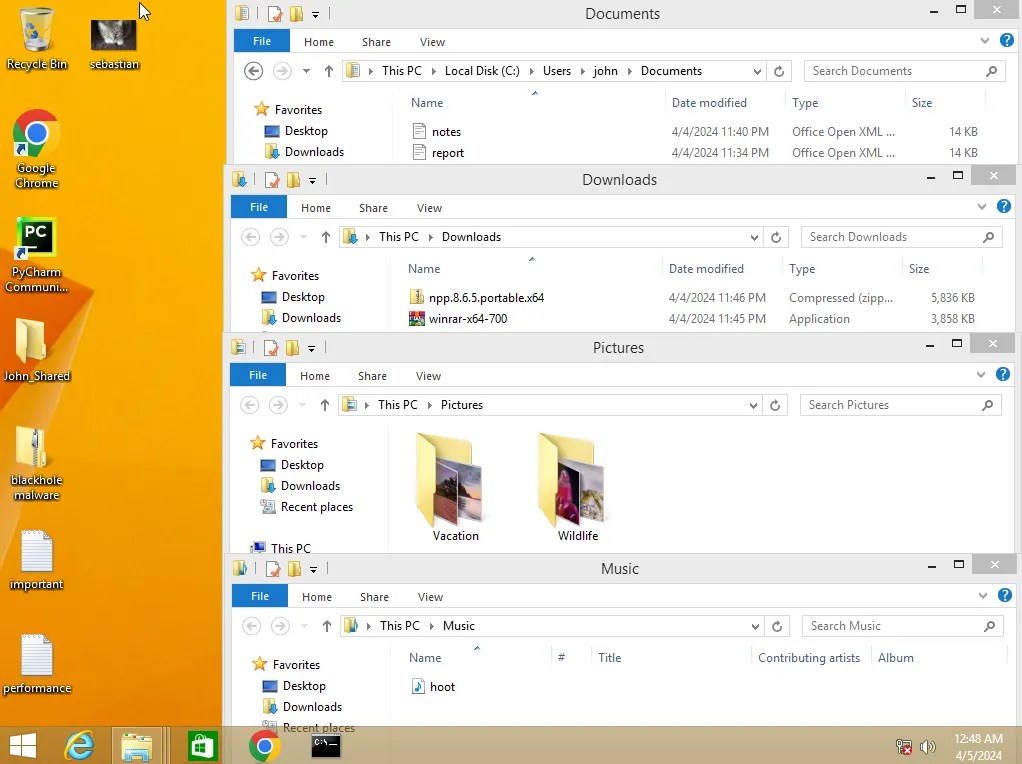
As you can see, I populated it with some files for demonstration. Some documents, downloads, images, and a sound file. Let’s see what happens after I run the malware.
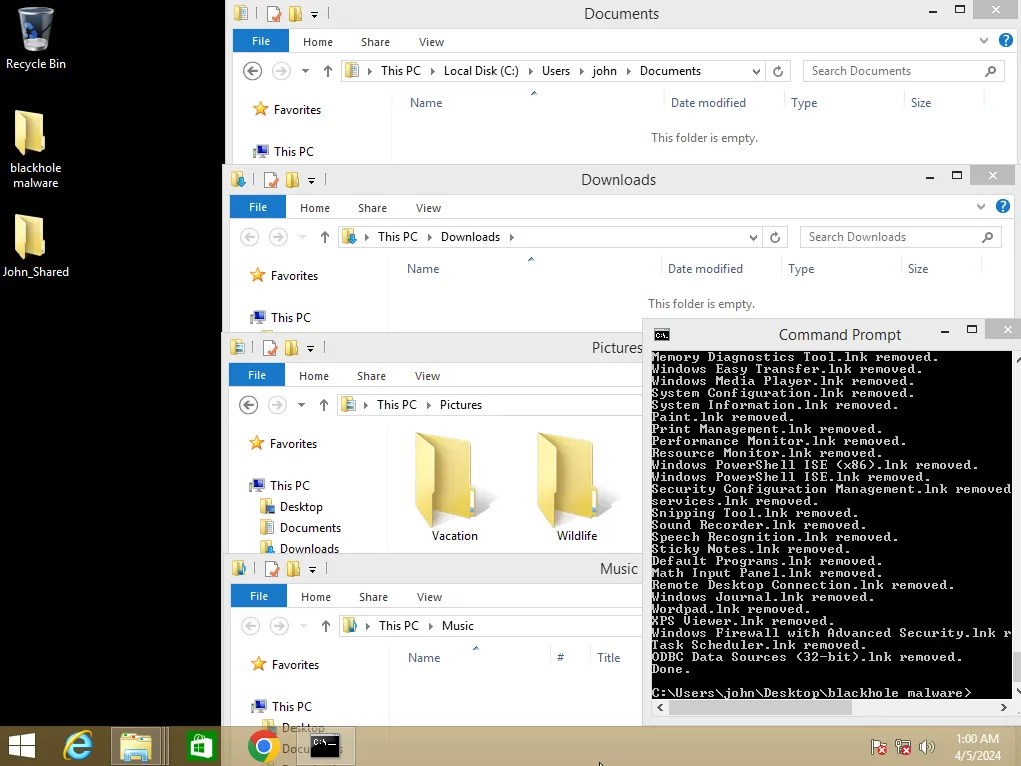
Everything has been completely deleted. So, how do we get our files back? It’s actually a fairly simple process. On a real machine, you would first want to create an image of the drive (an exact byte-by-byte copy of the current state of the drive). I would recommend using FTK Imager to do this. Because this is a virtual machine, I can just use the virtual disk file to analyze the contents of this machine.
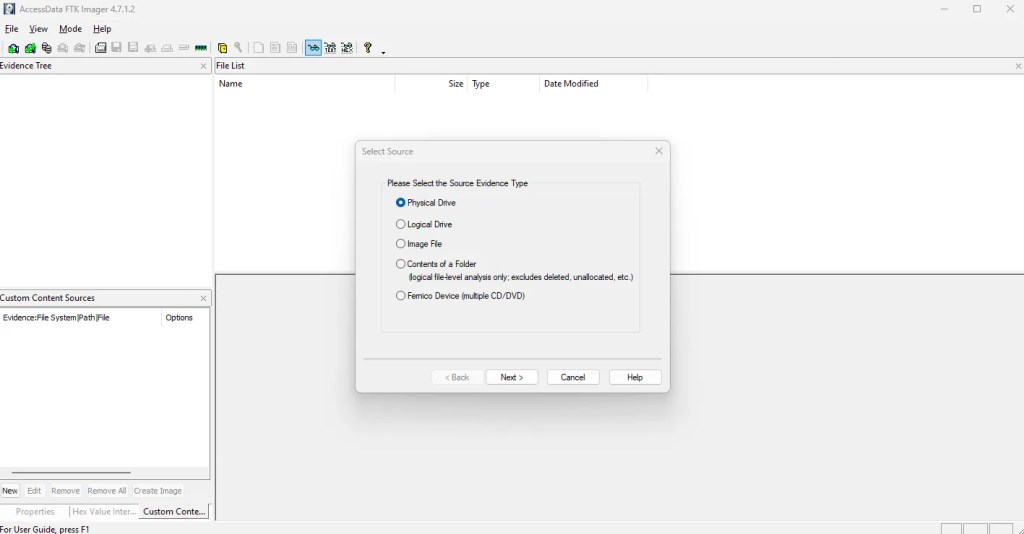
Once you have the image file of the drive, you can start trying to recover the files. As you probably know, when a file is deleted from a computer, it isn’t actually gone. It simply marks the space that your file was occupying as unallocated. In other words, it tells the computer that the space that the previous file was occupying can now be overwritten with new data. As long as no new data is overwritten into that space, then the file can still be recovered. This is done through a process called file carving.
When an application reads a file, it will look at the data to determine what type of file it is. Many file types can be determined by their file header, a short set of bytes that are unique to that file type, which tell the file system that this is the beginning of this file. At the end of the file, there is another short set of bytes that signify the file footer (although not all files have a footer). Everything between the header and the footer is the contents of the file. For example, the header for a jpeg file is either FF D8 FF E0 or FF D8 FF E1. The footer for a jpeg file is just FF D9.
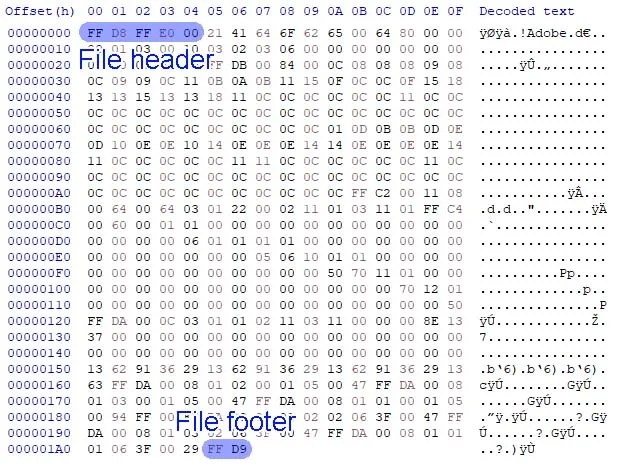
Using this information, we can recover deleted files. Because the deleted file isn’t actually gone, but simply marked as unallocated, if we analyze the disk image we will still be able to see the data from those deleted files. You could technically go through all the data manually, copy the data like this, and paste it into a file to recover it, but that would take way too long. There are faster ways to do this. I coded a file carving program in python that will speed this up. You can read more about this program here. It allows you to choose from a set of file types you want to recover, then it will automatically go through the disk image, carving out each file of that type. Let’s demonstrate this by carving the deleted jpeg files from the virtual machine that I wiped. After running the program on the virtual machine disk image, this is what a portion of the output was.
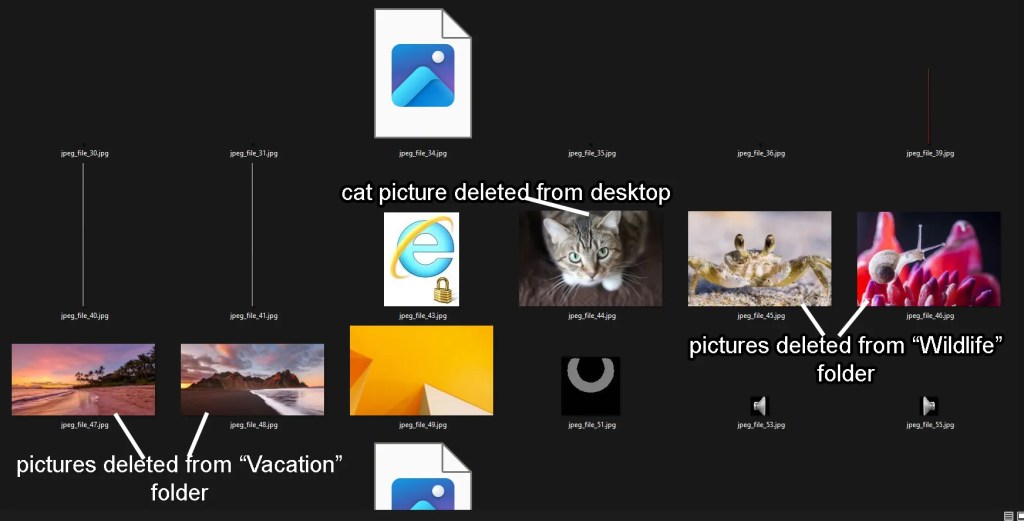
As you can see, we were able to recover every jpeg file that was removed from the virtual machine. However, at the current stage of my file carving program, its utility is somewhat limited. For a situation like this, you will probably want to use a program that is more advanced than this. There are a lot of great forensics tools I’ve used, including FTK and EnCase, but these options are pricy. So, we will use a program called, “Autopsy,” a free, open-source digital forensics tool. This program has many different forensic features, but today we will just be looking at its ability to recover files.
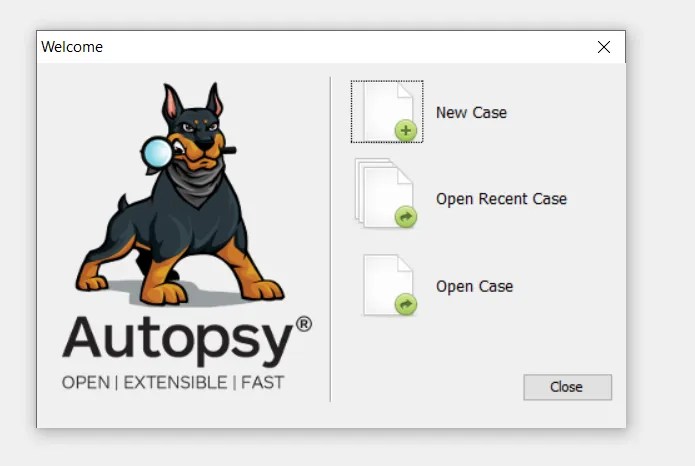
After you load your image into Autopsy, you can navigate through the file system using the tree pane located on the left.
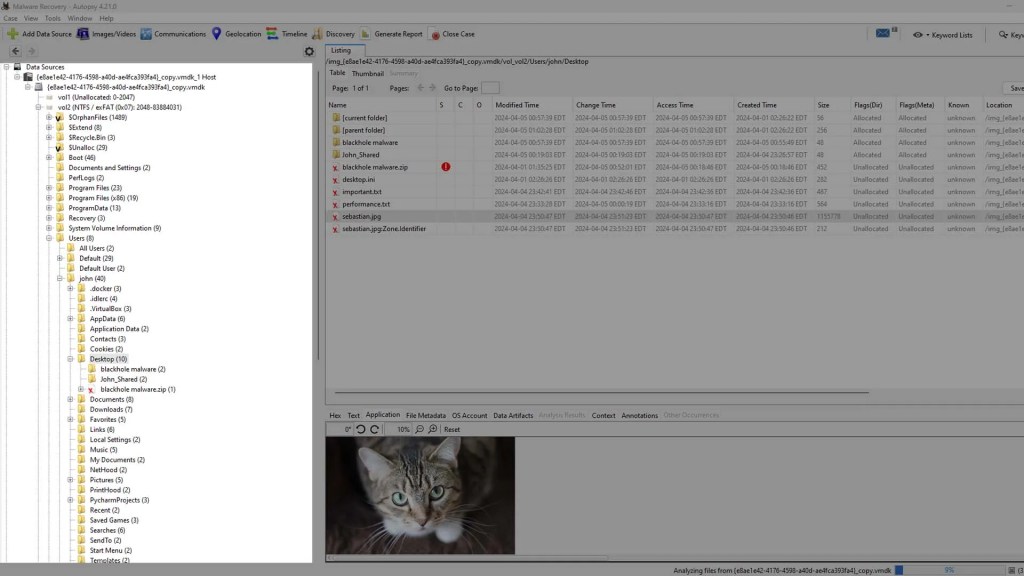
By doing this, we have navigated to the desktop, where you can see the names of the deleted files, as well as the contents of them in the viewer beneath. You can just as easily export these files by right-clicking them.
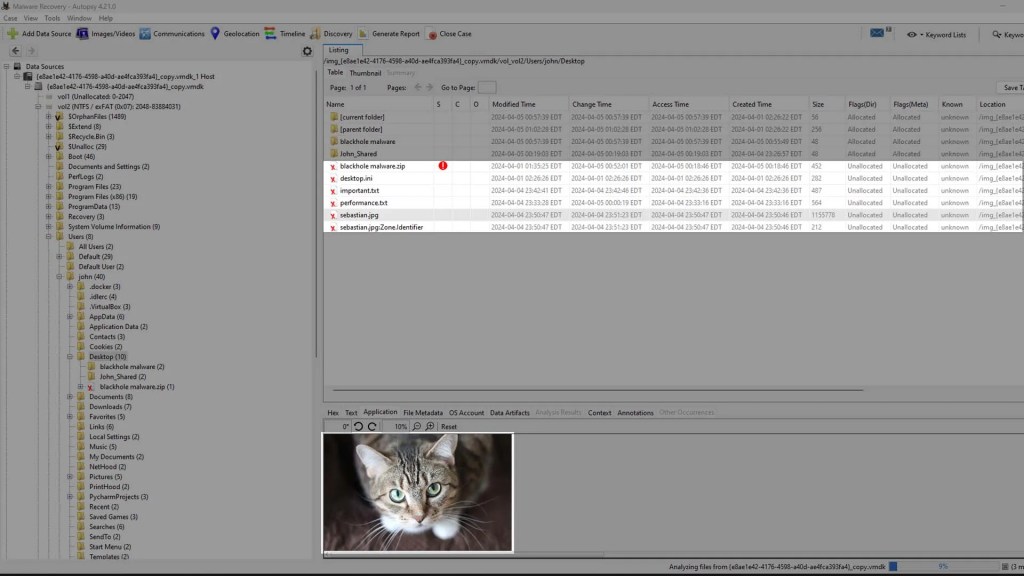
If we go to the directories of the other files that were deleted we can see that this program has recovered all of them.
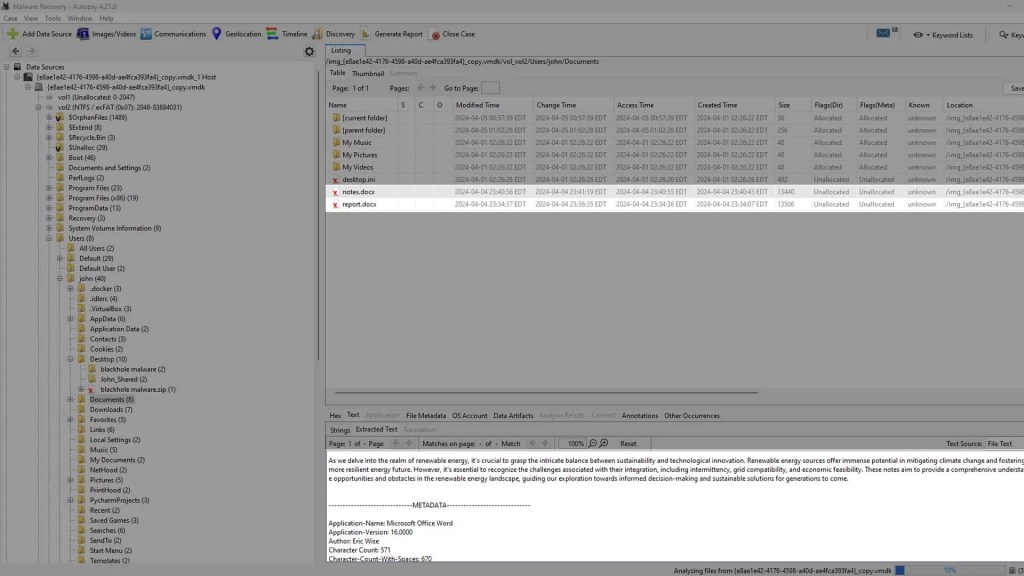
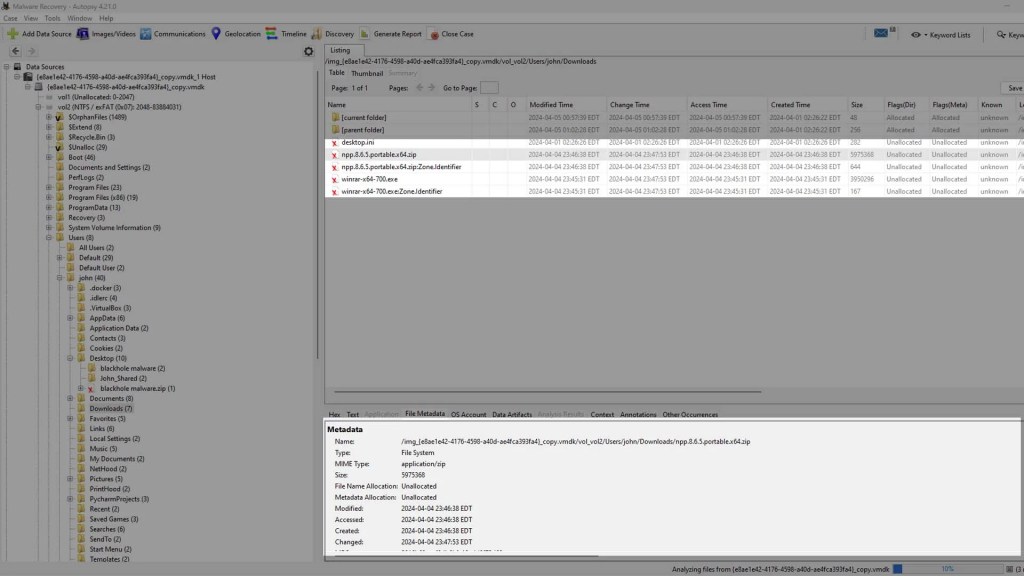
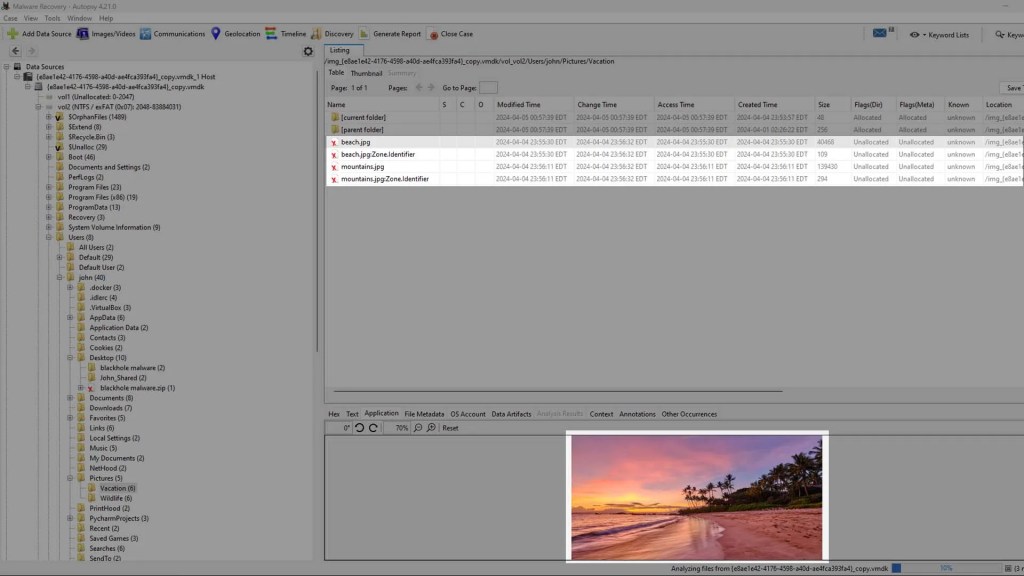
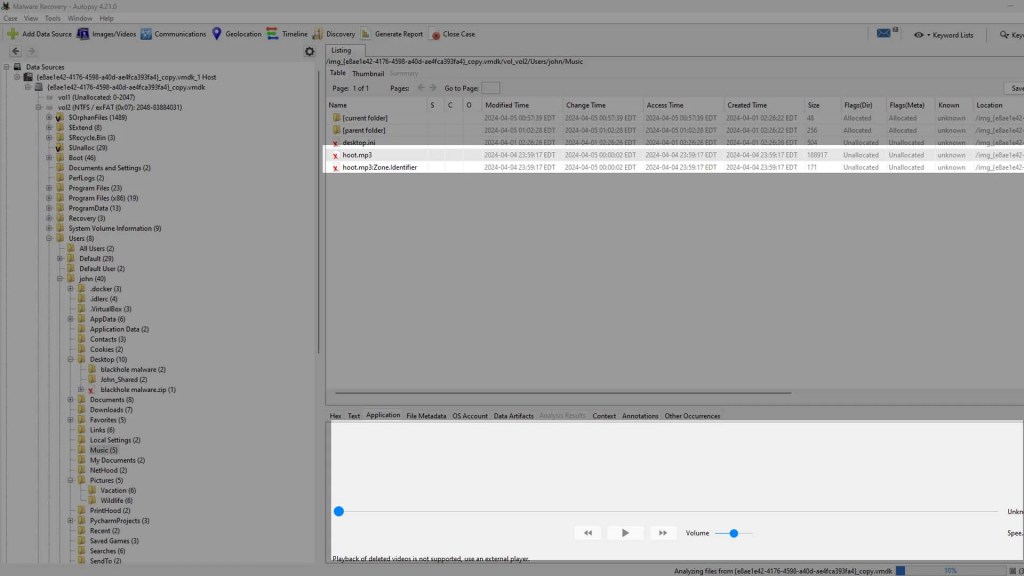
Now you can rest easy knowing that in the event of a tragedy like this, there is still a good chance of you recovering your data… or is there? In the case of the wiper malware that I created, it was relatively forgiving. But remember what I said earlier about file carving? You can only recover deleted files if they have not yet been overwritten. If a wiper malware script were to be more thorough and cause lasting damage, it would not only delete the files, but also overwrite the unallocated space. I can demonstrate this by adding this small piece of code to the malware.
import os
from Crypto import Random

file_size = Random.get_random_bytes(1073741824) # set file size to 1 GiB
counter = 0  # initialize file counter

# start loop to continously write files
while True:
    # try to write file, with prefix of file being current counter number to keep track of them
    try:
        with open("overwrite_file" + str(counter), "wb") as file:
            file.write(file_size)  # file writes data to be proper size
        counter += 1  # increment counter so the next file with have the appropriate name
        print("Created overwrite_file" + str(counter))

    # once the disk is full, an error will hit and end loop will end
    except:
        break

print("Overwrite finished. Cleaning up.")

# loop through all the files, deleting each one to clean up
for x in range(counter):
    try:
        os.remove("overwrite_file" + str(x))
        print("Deleting overwrite_file" + str(x))
    except:
        continue

print("Done.")
With this addition, the malware will become more dangerous. After deleting all the files, it will start writing files to the drive until the drive is full, and then delete all of those files. This will overwrite all of the unallocated space on the drive, making the deleted files irrecoverable. Take a look at this demonstration.
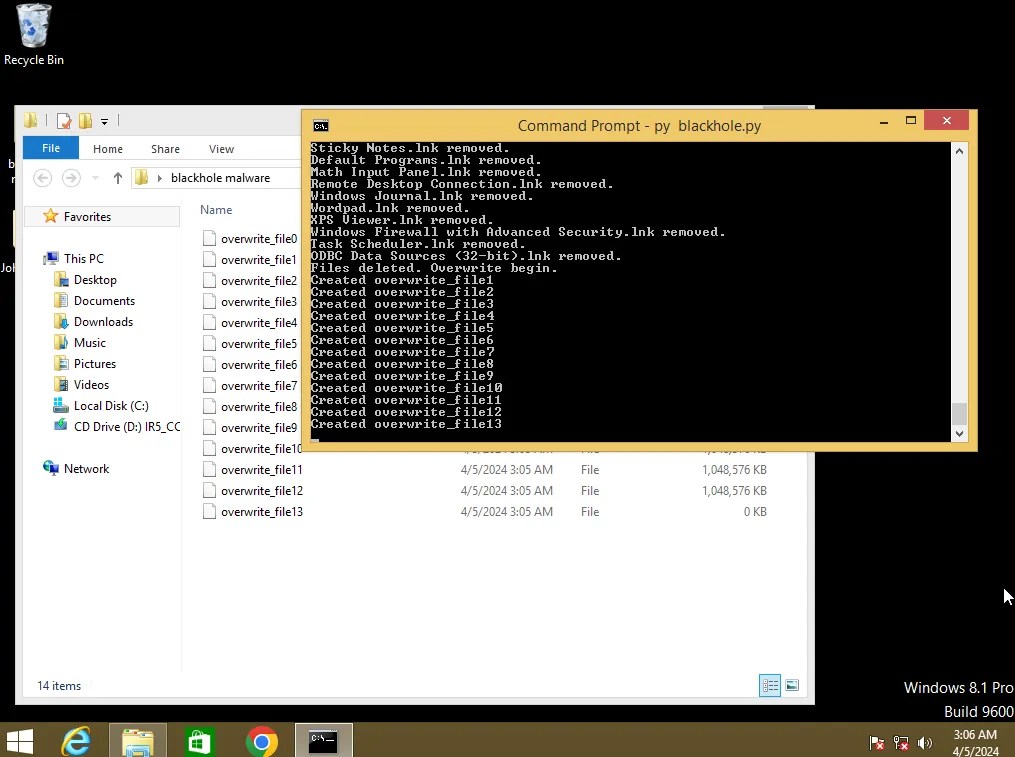
After the program finishes up, we can analyze the disk image again and see what happens if we try to recover the deleted files.
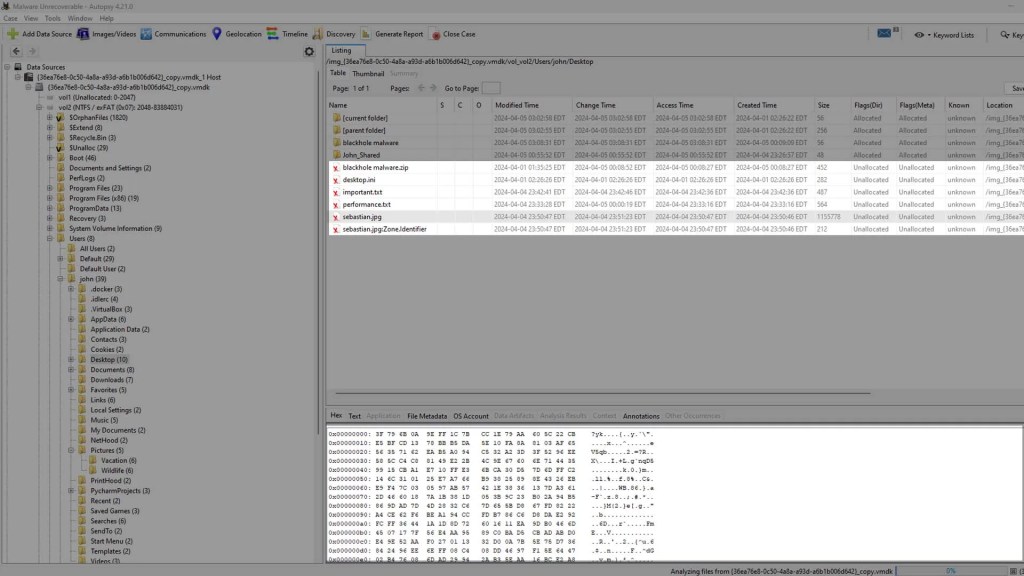
Autopsy will still show the file names, but as you can see from the view pane, the data is gone and replaced with random bytes from the overwrites. This is true of all of the files.
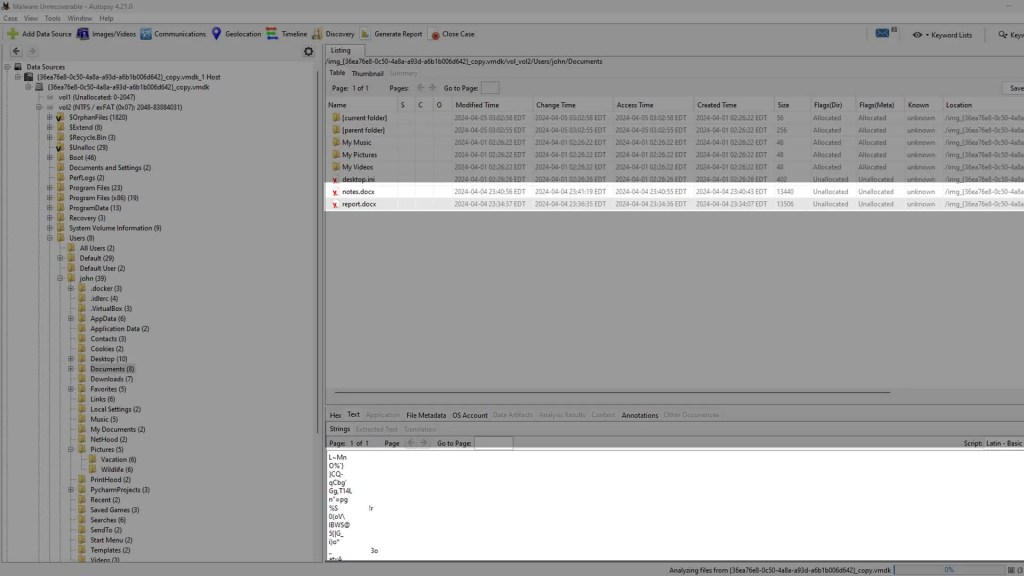
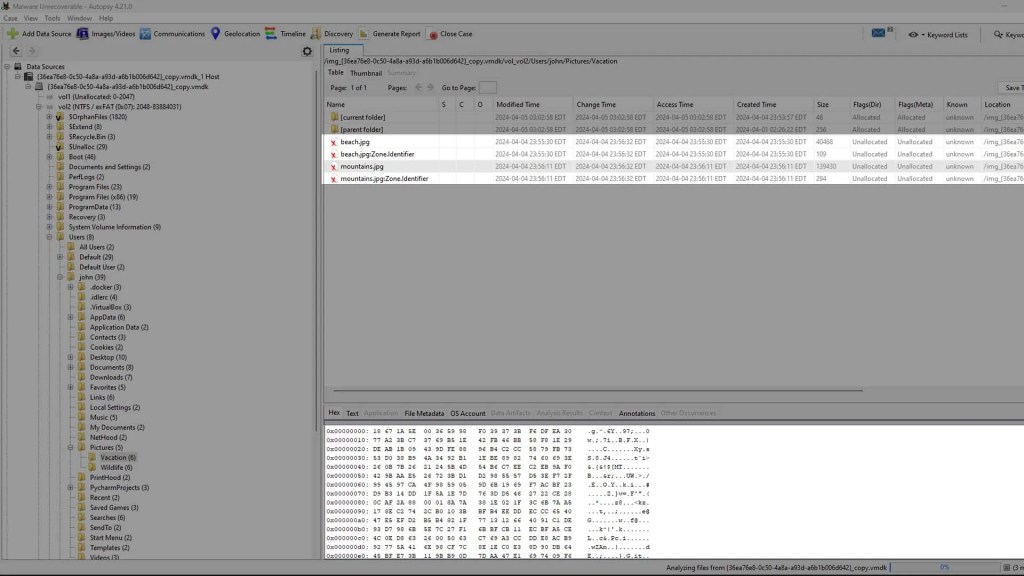
And if you try to export any of these files, you will receive further confirmation that they are not able to be recovered.
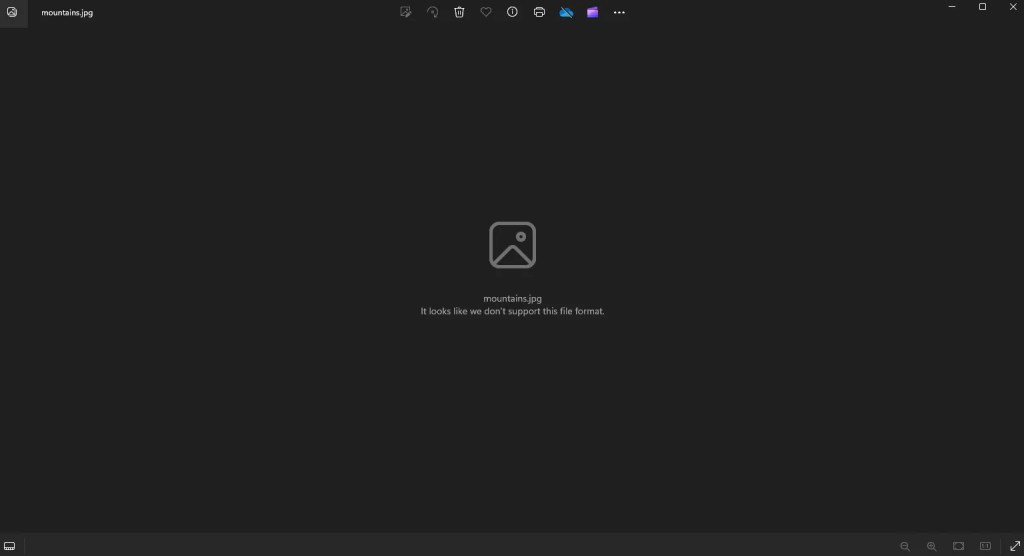
So, a wiper malware program that overwrites the drive after deletion can be very dangerous. It’s important to know how to defend yourself from these types of events. If you are lucky enough to stop the program before it finishes overwriting the drive, then there will be a chance for you to recover your files. But it is probably best to take a proactive approach to a situation like this. One thing you can do is manage the user permissions on your system. A lot of file wipers can only delete files that the current user has access to. By making access to important directories an administrator-only privilege, you could stop a wiper from being able to access it.
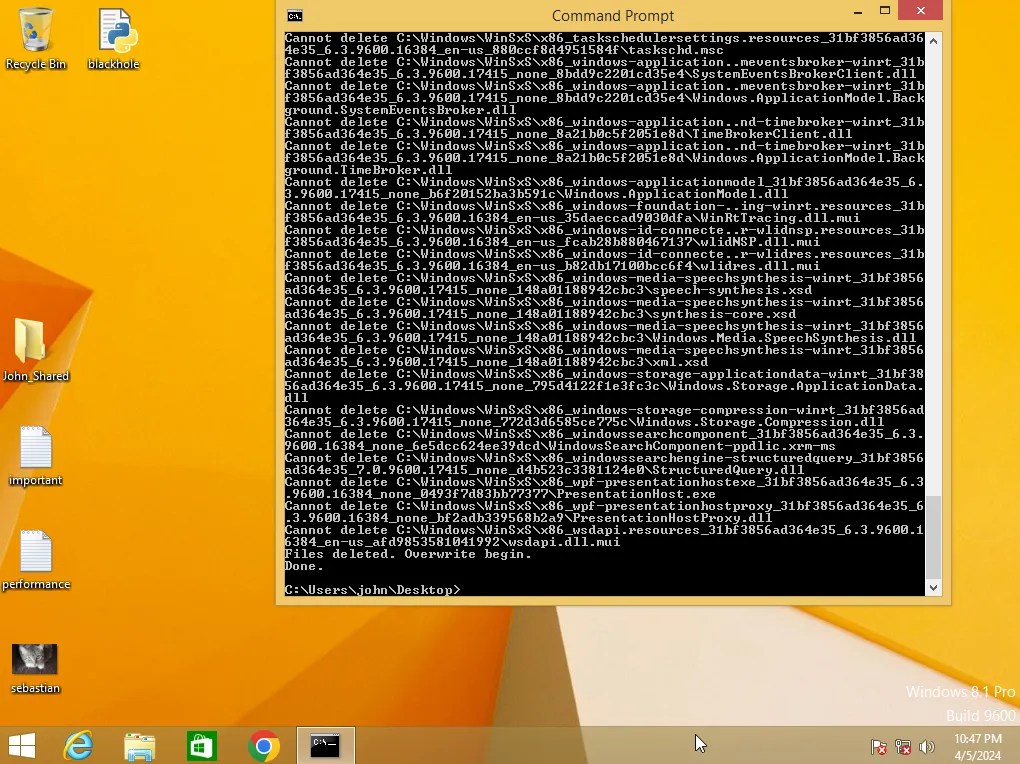
The following is what happened after I removed modification privileges from the current user before running the malware. As you can see, because the current user didn’t have the privileges required to delete files here, neither did the malware.
In addition to this, it is also important to regularly make backups of your system so in the case of something like this happening, you can just restore your system to the last backup. By following these common practices you will be equipped to not only proactively keep your system safe, but also respond to an incident in the most appropriate way possible.

 Wise Forensics
Leave a comment