
Anti-forensics
A lot of people aren’t fully aware of the trail they leave behind after using an electronic device. This makes a digital forensic investigation very useful when trying to piece together events that occurred. Some people, however, will try to use various techniques to cover their tracks. This practice is known as anti-forensics. If someone knows what they are doing, then they can make an investigation much more difficult, but not impossible. No matter how hard someone tries to destroy or obfuscate evidence, it can still always be recovered if the investigator is creative enough. One of the most common anti-forensics techniques employed is secure deletion of files.
Secure Deletion
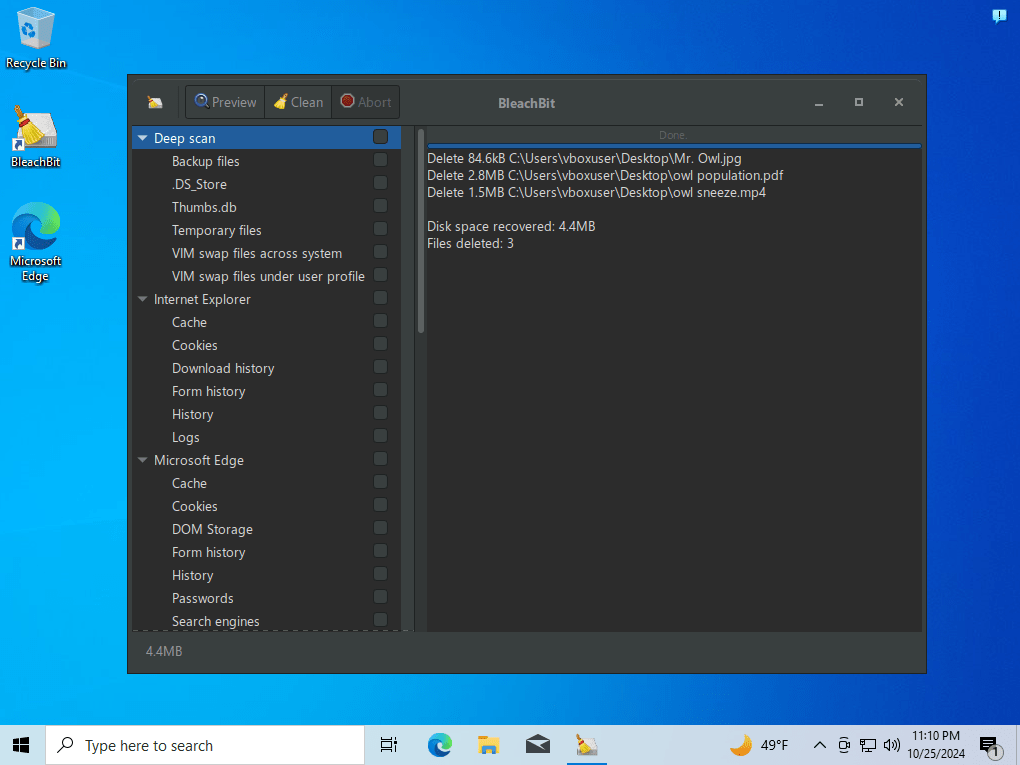
As I’ve covered in a previous blog post, recovering deleted files is fairly simple through techniques like file carving. When a file is deleted, it isn’t truly gone. The system just marks it as unallocated. The actual data, however, still remains on the disk until it is overwritten by something else. If someone is motivated to make sure a file is truly erased, they can purposefully overwrite disk space after the file is deleted, making it irrecoverable. This is where secure deletion comes into play. There are many types of software that can do this, but one of my favorites is BleachBit. This software has a file shredding feature that lets you securely remove files by deleting them and then overwriting the unallocated space. This makes file recovery through file carving impossible, since the data now no longer exists on the disk. To demonstrate this, I created a Windows 10 virtual machine and downloaded three files on it: “Mr. Owl.jpg”, “owl population.pdf”, and “owl sneeze.mp4”.
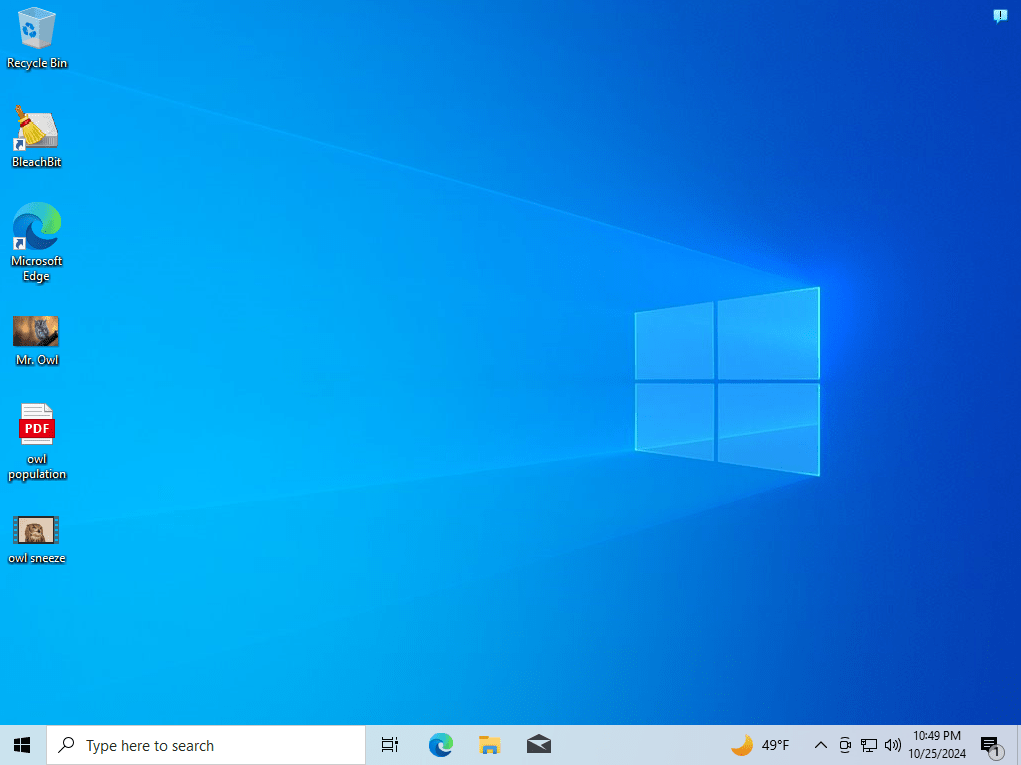
BleachBit is super simple to use. After you download and run the software, you can just select the files you want to securely delete, and click “Delete”. That’s it. The files are now fully removed.

How to Counter This
So, if a suspect has erased evidence through a technique like this, then what? Give up? Not quite. There are still some potential ways to recover the data, or at the very least, the metadata. The first thing you should look for are volume shadow copies.
Volume Shadow Copies
Windows systems have a built-in service called Volume Shadow Copy Service (VSS). This service will take a snapshot of a disk volume at specific points in time to create a system restore point. Shadow copies are often created automatically before significant system events like software installations and Windows updates. Some systems are even set up to create a restore point every 24 hours. The purpose for this is so that if the user needs to revert back to a prior system state, they can easily do so. I’m sure you can see the forensic significance of this. Even if someone securely deletes a file, it can still be recovered if it was captured in a shadow copy. There are a lot of ways to check the shadow copies, but one of the easiest ways is with a tool called Shadow Explorer. This is a simple GUI tool that lets you sort through the shadow copies by date and time to browse through different restore points. When I ran this on the virtual machine that I securely deleted those files from, I was able to easily recover all of them.

This is a great method to use, but this will not always work. In some cases, the files you’re after may have been deleted before a shadow copy was created. Or maybe even the shadow copies were securely deleted. If this is the case, your only other option to fully recover the data is to find some sort of other backup. Sometimes files are backed up to the cloud, sometimes they’re backed up on a different device. But if there are genuinely no backups of the data at all, then unfortunately it will not be possible to recover. But this doesn’t mean that you can’t get any information about the deleted data. Even after files are securely deleted, they will still almost always leave behind traces of metadata that can be analyzed. Your best bet here is to search through Windows logging mechanisms. Three crucial files that will hold this metadata are $MFT, $LogFile, and $UsnJrnl.
$MFT
The MFT (Master File Table) is a core component of all NTFS file systems (introduced in Windows NT 3.1 and used in all later versions of Windows). The MFT acts as a database that keeps track of every file and directory on the drive. Every file and directory has its own entry in the MFT. Each entry contains metadata including the file or directory’s name, size, timestamps, and location of the data on the disk. This makes it efficient for an NTFS file system to locate and manage files on large volumes. The reason why this is so important forensically, is because when a file is deleted, its MFT entry is not immediately removed. The entry is just marked as available for reuse, but the data in the entry will still remain until a new file needs to use that entry. By consulting the MFT, you can get a lot of information about a file, even if it has been deleted.
$LogFile
The LogFile is a log that keeps track of changes to files and directories. Every time an operation is made in the file system (such as file creation, deletion, and modifications) it is recorded in this file. The purpose of this file recording these actions is so that it can refer back to these actions in the event of an unexpected system shutdown. So, if a system crash were to occur, then NTFS can quickly roll back incomplete transactions to make sure everything runs smoothly. Because of this purpose, the file is relatively smaller than other types of log files. When this file becomes full, it will delete its oldest entries to make room for newer ones.
$UsnJrnl
The UsnJrnl (Update Sequence Number Journal) file is similar to the LogFile. It also keeps detailed change records for files and directories. Every time a change is made to a file (creation, deletion, modification, etc), it is logged here with a unique update sequence number. These logs are useful for applications that need to monitor files like backup software and antivirus programs. One thing that makes this file stand out from the LogFile is that it can hold many more records. So, this file is better as a long-term record to keep track of file activity. However, just like the LogFile, it does have a limited space, and when it is full, it will remove its oldest entries to make room for newer ones.
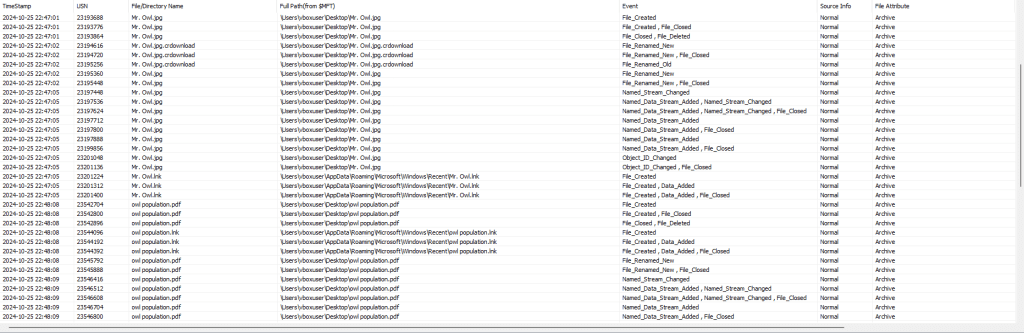
In most cases, traces of metadata will remain in all of these files even after a file is securely deleted, making it possible to view detailed activity involving these files from creation to deletion. It’s not as good as having the actual data itself, but it’s the next best thing. These files aren’t directly visible through File Explorer, but you can still easily find them using a tool like FTK Imager.


Once you extract these files, you can begin analyzing them. There are many methods to analyze each of these individually, but one way I have found useful is through a tool called NTFS Log Tracker by Junghoon Oh. Using this tool, you can simply import the $LogFile, $UsnJrnl ($J), and $MFT into the program and then click “Parse”. It will then look through these records, cross reference them with the MFT, and parse the results in an SQLite database file. From there, you can search through the database for the relevant files you are looking for. Below are some of the results from the $LogFile and $UsnJrnl from the virtual machine that I securely deleted those earlier files from.

So, while secure deletion is a common anti-forensics measure that can complicate a digital forensic investigation, it does not make it impossible.

 Wise Forensics
Leave a comment