
What Is File Carving?
A large part of digital forensics involves data recovery. As many of us know, when you delete a file from your computer, it isn’t actually gone. The operating system only marks that space as unallocated so it knows that it can write over it in the future. But as long as this data is not overwritten, it can still be easily recovered. By searching through a storage device for recognizable patterns, you can recover files that may have seen long gone. This process is known as file carving. To get a better understanding of this process, I decided to write my own file carving software.
How Does It Work?
When an operating system or a program accesses a file, it needs a way of identifying that file and its content. One of the main ways it can figure this out is through reading the file signature. A file signature is a unique set of bytes at the beginning of a file that identifies it. For instance, if you were to view the hex data of a jpeg file, you would see that it begins with “FF D8 FF E0” or “FF D8 FF E1”. This is the unique signature that tells programs this is a jpeg file.

Many files also end in a unique footer to signify when the file has ended. Sticking to our example of a jpeg file, you can see in hex that every jpeg file ends with “FF D9”. This is a jpeg file’s unique footer.
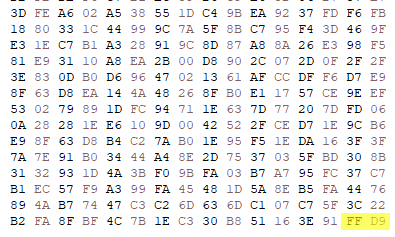
This is forensically significant because it makes it incredibly useful for locating files, even if they are in unallocated space. This concept is exactly how my program works.

The program is pretty straight forward. You will first need to have a disk image of the drive you are carving. You can make a disk image of a drive using a tool like FTK Imager. From there, you will need to mount the drive (which can also be done using FTK Imager). Once it is mounted, you need to navigate to the directory labeled “[unallocated space]”. Select the unallocated space directory for the first input box, then choose the output directory for the second input box (this is where it will output all the files it finds). Then you can use the checkboxes to select which types of files you want to carve. After you click “Carve”, then program will do the rest of the work for you.
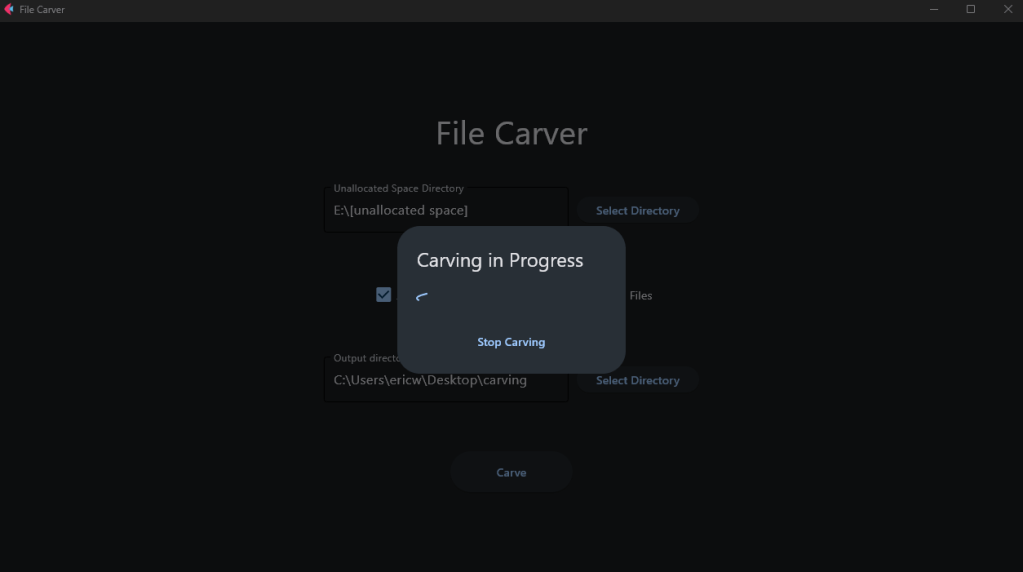
The program will search through all data in the files in the “unallocated space” directory, searching for file headers of the types of files you specified. If it finds one, it starts reading the data up until it comes across the file footer. Then it neatly packages that up and exports the file. I tested this out on one of my old flash drives that I imaged, and was impressed at how much it dug up. I even found some of my old projects from my high school computer science class years ago.
Source Code: https://github.com/ericw317/FileCarving
Executable Download: https://sourceforge.net/projects/file-carver/
 Wise Forensics
Leave a reply to Recovering Deleted Files After a Malware Attack – Wise Forensics Cancel reply